How To Delete Bluetooth Device From Honda Civic?
Wondering how to get rid of a Bluetooth device from your Honda Civic? It’s easy and helps with managing your car’s tech.
Often, we switch phones or gadgets, leaving old connections behind. These unused pairings fill up your system.
To clean them, simply go into your car’s Bluetooth settings. Find the unwanted device and follow the steps to remove it. This makes your drive smoother and keeps your car’s tech tidy.
This guide will show you the critical steps to remove a Bluetooth device from your Honda Civic. Plus, you’ll find out why it’s a good idea to keep your Bluetooth system updated.
Keeping your settings in check improves your drive. Now, let’s improve your Honda Civic’s tech for a better driving experience!
What is Bluetooth in Honda Civic?
Pairing your mobile device with your Honda Civic is simple with cutting-edge Bluetooth technology.
It improves your driving experience by adding convenience and safety to your journeys.
What is Bluetooth HandsFreeLink®?
Bluetooth HandsFreeLink® is Honda’s special technology. It connects your mobile device to the car’s audio system wirelessly.
With this, you can make hands-free calls and stream music, keeping your focus on the drive.
Benefits of Bluetooth Connectivity
Adding Bluetooth to your Honda Civic comes with many perks. Here are some key benefits:
- It makes driving safer by reducing distractions.
- It offers smooth phone integration for easy calls and music streaming.
- It helps you control your smartphone features without letting go of the wheel.
Why You Might Want To Delete A Bluetooth Device
Deleting a Bluetooth device from your Honda Civic can make your drive better. It helps you manage connections easier and fixes some problems. This keeps your Bluetooth area clean and simple.
Freeing Up Connectivity Options
It’s important to delete old Bluetooth devices that you don’t use anymore. This is crucial if you often get a new phone or gadgets.
Getting rid of these makes connecting to your current devices faster and less confusing.
Troubleshooting Connection Issues
Sometimes, connecting to Bluetooth in your Honda Civic can have problems. To fix these, removing old or conflicting devices is needed.
If you’re having issues like disconnections, it might be time to delete a device. Doing this can help you connect smoothly again.
How To Delete Bluetooth Device From Honda Civic?
Deleting a Bluetooth device from your Honda Civic is easy. Follow a simple step-by-step guide to manage your connections.
First, learn the necessary steps. Remember to take some precautions before you start. This helps avoid problems when deleting Bluetooth connections.
Step-by-Step Guide To Deleting A Device
- Press the phone button on your dashboard.
- Navigate to the settings or manage connections menu.
- Select the option to view paired devices.
- Find the device you wish to remove and select it.
- Confirm the deletion of the identified device.
Precautions Before Deleting
Before you start, take some important precautions. Make sure you can access the device if you want to reconnect later.
Once a device is removed, re-pairing is necessary to use it again. This might be a hassle if you frequently use the device. So, think carefully if you need to delete it now.
Removing Bluetooth Devices in Different Honda Civic Models
The process for removing Bluetooth devices varies by the Honda Civic model. Older versions may have a simpler way to work with, while newer models like the 2022 Honda Civic have advanced features.
This includes a touch screen. It’s key to check your owner’s manual for specific steps for your car.
Differences Between Model Years
The method for deleting Bluetooth from a 2022 Honda Civic can change. Features and connectivity improve in newer models.
Newer cars often have better menus and settings. This makes it easier to delete Bluetooth devices.
Specific Instructions For 2022 Honda Civic
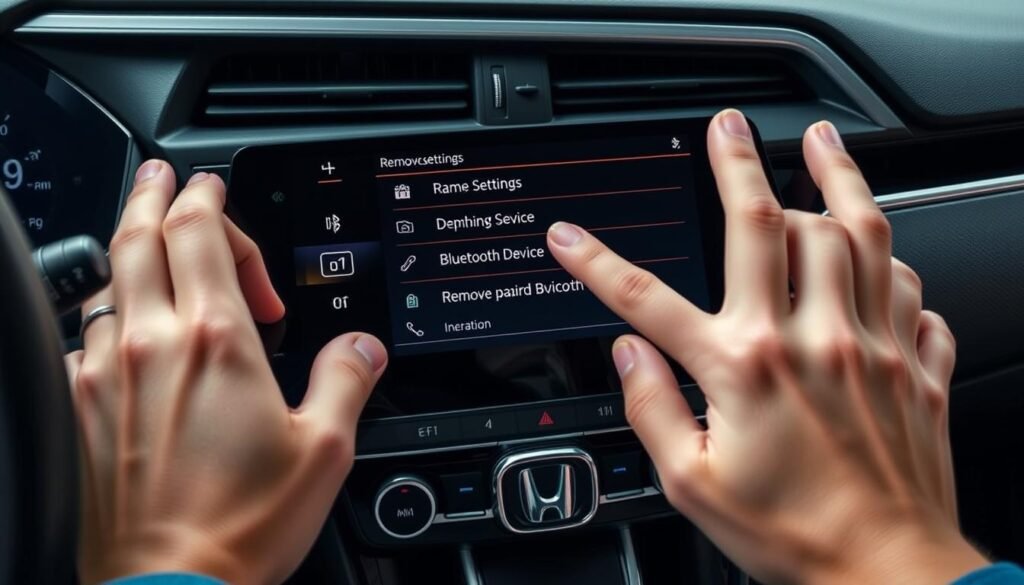
To delete Bluetooth on the 2022 Honda Civic, first go to the touch screen settings. Find the Bluetooth area to see all devices you’ve connected.
Choose the device to delete, then follow the steps to remove it. This makes managing your Bluetooth easier.
Disconnecting a Bluetooth Device
To take a break from using a Bluetooth device in your Honda Civic, simply disconnect it.
It’s faster than removing the device completely. If you swap devices often, disconnecting saves you time.
Quick Steps To Disconnect
Here are the easy steps to disconnect Bluetooth devices in your Honda Civic:
- Access the Bluetooth settings on your phone or the vehicle’s infotainment system.
- Locate the Bluetooth device you want to disconnect.
- Select the disconnect option to temporarily stop the connection.
- The device will remain in the list, allowing for easy reconnection when needed.
When To Consider Disconnecting instead of Deleting
Deciding when to disconnect instead of delete depends on how you use your devices. Disconnect if you’ll use the device again soon.
Delete it if it’s no longer needed or if you’re having continuous connection problems. Knowing the difference helps you manage your devices better.
Forget Bluetooth Device Honda Civic
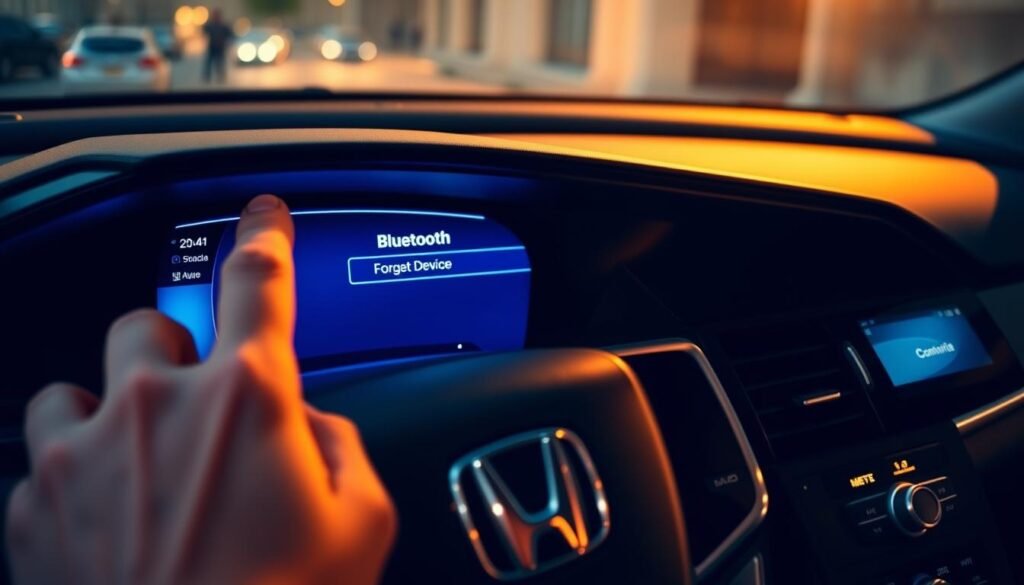
Forgetting a Bluetooth device on your Honda Civic is very useful. It erases the device’s profile from your car.
If you’ve sold the device or don’t want it connected, this feature is handy. It stops the device from connecting automatically, keeping your drives private and secure.
Compromise The ‘Forget’ Option
Choosing to forget a Bluetooth device means the system removes its data. It won’t connect by itself anymore.
If you want it reconnected, you’ll need to pair it again. This is great for people who switch phones often or worry about others accessing their car systems.
How Forgetting Affects Future Connections
Forgetting a device does more than just disconnect it. It reduces the risk of unwanted access, letting you control which devices connect.
This is key for those using different devices or valuing their privacy. Forgetting unnecessary devices improves your Honda Civic’s audio system use.
Remove Paired Device Honda Civic
It’s key to manage your Bluetooth in a Honda Civic for the best drive. You should know how to find devices paired with your car.
This keeps your vehicle ready for new connections without any mess.
Identifying Paired Devices
To see what’s paired with your Honda Civic, check the Bluetooth part in the car’s menu.
You’ll see all devices that have connected before. Knowing about these devices helps you decide which ones to stay or go.
Ensuring Complete Removal
After spotting the devices paired, you should next fully remove the ones you don’t want. Remove each unwanted device one by one.
Make sure they don’t show up in the list anymore. This step clears space and prevents future connection problems.
Deleting Bluetooth Connections For Enhanced Performance
Keeping your Honda Civic’s Bluetooth system running smoothly is important. It’s key to delete old Bluetooth connections for the best performance.
Outdated connections can slow down the system and cause problems. Get in the habit of removing old connections for smoother use.
Experts suggest doing this every six months. Especially if you notice the system isn’t working as well.
How Often Should You Delete Old Connections?
Create a schedule to clear out old Bluetooth connections. Here’s when to do it for the best results:
- Every six months
- When you experience connection problems
- After acquiring new devices that need pairing
Impact on System Performance
Too many old Bluetooth connections can slow down your system. This leads to:
- Slower Bluetooth response times
- More connectivity errors
- Trouble pairing new devices
Deleting those old connections will improve your system. Your Honda Civic’s tech will work better. And you’ll enjoy driving more, without any hassle.
Common Issues When Trying To Delete Bluetooth Devices
If you’re trying to remove a Bluetooth device from your Honda Civic, you might run into a few problems. One big issue is that some options won’t be clickable.
Another is that the car blocks deletions while driving. Knowing about these issues can help you figure out what to do to fix your Bluetooth problems.
Options Greyed Out When Trying To Delete
Sometimes, when you try to delete a Bluetooth device, the options may look unclickable. This could happen because your car is trying to keep you safe.
It locks some features while moving. To fix this, make sure you’re parked. If it still doesn’t work, you might need to reset your system or check your manual for help.
Attempting To Delete While Driving
Driving safely should always come first. That’s why cars like the Honda Civic stop you from messing with Bluetooth when you’re moving. It helps keep your focus on the road.
If you try to delete a device while driving, you’ll see that it just doesn’t work. Always make sure you’re safely parked before you start changing your Bluetooth settings.
Unlink Bluetooth Device Honda Civic
Removing a Bluetooth device’s connection from your Honda Civic keeps the profile without completely deleting it.
This is handy if the car is used by many people. Knowing how to unlink helps with managing your car’s Bluetooth settings.
What Does Unlinking Entail?
Unlinking means cutting off the active link between your car and a Bluetooth device. The device remains in the system for easy reconnecting later.
It’s great for temporarily stopping use of a device or when many devices need to connect to the car’s Bluetooth.
How To Unlink Effectively
To successfully unlink devices, do the following:
- Go to your Honda Civic’s Bluetooth settings in the infotainment system.
- Pick the device you wish to unlink.
- Choose the unlink option in the settings.
- Confirm your choice to finish the unlink process.
By doing these steps, the chosen Bluetooth device won’t be active anymore but will stay saved for later. This makes managing your vehicle’s connectivity easier.
Erasing Bluetooth Connections For Safety
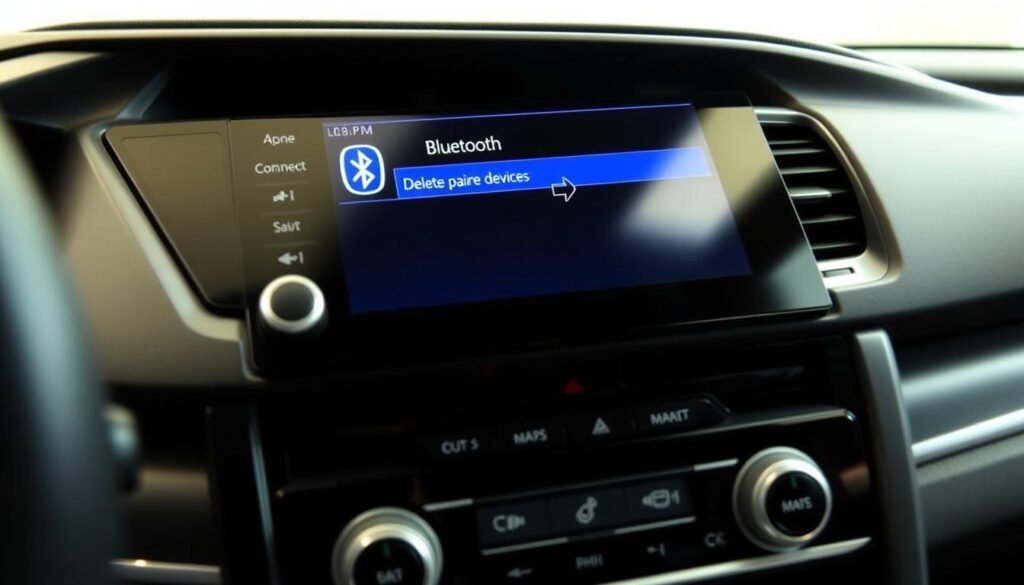
To keep your information safe, you need to erase Bluetooth connections in your Honda Civic.
This is key if you share your vehicle or plan to sell it. Doing this makes sure your private information stays safe.
It’s very important to erase these connections for privacy. If you don’t, someone might access your personal info without permission.
Why Erasing Is Important For Privacy
Erasing Bluetooth connections keeps your personal details safe. It also stops others from misusing your car’s Bluetooth. A clean slate keeps your digital privacy secure.
Steps To Ensure All Connections Are Cleared
- Start your Honda Civic and access the Bluetooth settings from the infotainment system.
- Select the option to view paired devices.
- Choose each device you want to remove and confirm the deletion.
- After deleting all devices, check the list again to ensure no devices remain.
- Restart your infotainment system to complete the erasure process.
Follow these steps carefully to erase Bluetooth connections in your Honda Civic. This maintains your privacy and stops future connectivity issues from happening because of old data.
| Step | Description |
|---|---|
| 1 | Access Bluetooth settings in the infotainment system. |
| 2 | View the list of paired devices. |
| 3 | Select devices to delete and confirm. |
| 4 | Verify deletion of all devices from the list. |
| 5 | Restart the infotainment system. |
Conclusion
Managing your Honda Civic’s Bluetooth connections is key for a smooth ride. Knowing how to delete unused connections helps keep your car’s tech working well.
Regularly checking your Bluetooth settings makes your drive better and keeps the system in top shape.
The steps provided make it easy to understand how to delete Bluetooth devices. Getting to know features like Bluetooth HandsFreeLink® lets you manage your connections better.
This leads to safe and focused driving. It’s important to keep your Bluetooth connections in check for the best experience.
Make it a routine to clean up Bluetooth pairings in your Honda Civic. Acting early helps you avoid tech issues and keeps your car connected.
By following these tips, you’re in for a dependable and pleasant driving experience every time.
FAQs
Q: How do I delete a Bluetooth device from my Honda Civic?
A: To delete a Bluetooth device, press the phone button on your car’s dashboard. Then, look for the option to see paired devices. Select the one you want to delete and confirm your choice.
Q: Can I disconnect a Bluetooth device without deleting it?
A: Yes, you can pause a Bluetooth connection. Just go to the Bluetooth settings, pick the device, and choose to disconnect. This keeps it in the list for later use.
Q: What does the ‘Forget’ option do for my Bluetooth connections?
A: The ‘Forget’ option wipes a device’s memory from your list. This means it won’t connect automatically anymore. You’ll need to pair it again if you want to use it.
Q: Why is it important to regularly delete old Bluetooth connections?
A: Cleaning up old connections boosts your car’s tech performance. It helps avoid issues and makes everything run smoother.
Q: How can I ensure that all paired devices are completely removed?
A: To make sure, head to your car’s Bluetooth settings. Then, delete each paired device one by one. Check they’re gone to confirm they’re truly removed.
Q: What should I do if options are greyed out while trying to delete a Bluetooth device?
A: If options are greyed out, it’s likely because of safety features. These prevent changes while driving and become available when you’re parked.
Q: What does it mean to unlink a Bluetooth device?
A: Unlinking a device stops its current connection but keeps its info. This allows you to temporarily stop using it without removing it completely.
Q: Why is it necessary to erase Bluetooth connections for privacy?
A: Erasing connections protects your privacy. This is key if others use your car or if you plan to sell it. It stops unwanted access to your info.