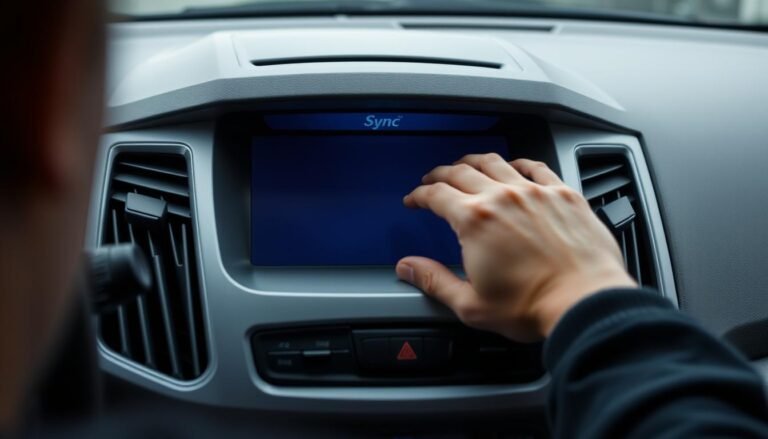
Ford Sync Master Reset Not Working – Fixes & Tips
Is your Ford Sync master reset not working? You’re not alone. Many Ford owners have trouble with their Sync systems. This can be really annoying.
In this guide, we’ll talk about common Ford Sync problems. We’ll also share effective solutions and tips. These will help you fix issues with your car’s tech fast.
This way, your driving experience stays smooth. We’ll tell you about the common issues and when a master reset helps. Knowing this can save you time and trouble.
With the right tips, keeping your Ford Sync system in good shape is easy. You’ll quickly fix any problems. Ready to learn how to sort out your Ford Sync system? Let’s get started.
Learning Ford Sync System Issues
Ford Sync system issues can really mess up your driving. Knowing the common problems helps you deal with them.
These include issues with playing music, connecting devices, and using the map.
Common Problems with Ford Sync Systems
A lot of Ford Sync owners face similar troubles, like:
- Unresponsive touch screens
- Difficulty syncing mobile devices
- Software update failures
- Loss of audio playback
Knowing these problems helps fix them faster.
Types of Ford Sync Issues
Ford Sync problems fall into three main categories:
- Hardware Failures: This happens when parts of the system break.
- Outdated Software: Old software can cause lots of issues.
- Update or Reset Problems: Sometimes updates or resets don’t work right.
Understanding these categories helps with fixing Ford Sync system issues.
What is A Ford Sync Master Reset?
A Ford Sync master reset lets you restart your system to its first setup. It helps fix many tech issues in your Sync system. Car owners find it crucial when facing system problems.
Purpose of A Master Reset
The main aim of a master reset is making the system fresh again. This wipes out all saved data and settings, fixing most software bugs. It’s perfect for handling system errors or slow performance.
When To Perform A Master Reset
Consider a master reset if your system often crashes or can’t connect with devices. Also, if it’s slow or hard to use, a reset could make it work right again. Master resets save time and improve your drive.
Ford Sync Master Reset Not Working
If your Ford Sync master reset isn’t doing what it should, it’s crucial to figure out what’s wrong.
You may see different problems showing there’s an issue with Ford sync master reset. Spotting these problems helps fix things better.
Identifying The Issue
Start by looking for signs something isn’t right. You might see the system stuck restarting over and over, or the touch screen won’t respond.
If “Loading Maps” stays on the screen, it means there could be big troubles with the system’s software or hardware.
Symptoms of A Failed Master Reset
- System fails to boot properly or gets stuck during initialization.
- Unresponsive touch screen, making navigation impossible.
- Persistent error messages occurring after the reset attempt.
- Loss of Bluetooth connectivity and failure to recognize devices.
- Failure to regain previous functionality post-reset.
Common Ford Sync Troubleshooting Steps
If you’re having trouble with your Ford Sync system, try some basic troubleshooting steps first.
A soft reset or a hard reset can often fix the issue quickly. Knowing when to use each can make a big difference.
Soft Reset vs. Hard Reset
Start with a soft reset when facing minor problems. This won’t delete your settings or data, so your preferences stay as they are.
But for bigger issues, consider a hard reset. This wipes everything, taking the system back to its original settings. It’s a good choice when simpler steps don’t work.
Performing A Factory Reset
To reset your Ford Sync system to factory settings, just follow these steps:
- Turn on your vehicle and make sure Ford Sync is on.
- Go to the Settings on the display.
- Click ‘General’, then ‘Master Reset’.
- Agree to the prompt, knowing all data will be erased.
Doing this should get your Ford Sync working right again. Regular troubleshooting can improve your experience and prevent other issues.
Exploring Ford Sync Software Update Problems
Keeping your Ford Sync system up-to-date is key to its efficiency. However, sometimes updates don’t go as planned.
These issues can prevent your system from getting better. Here, we look at why updates fail and how to fix them.
Why Software Updates Fail
Update problems often come from:
- Improper USB formatting
- Incomplete downloads of update files
- System miscommunications between the device and vehicle
These problems can stop the update process. This means your Ford Sync system might miss important updates.
How To Address Software Update Issues
Here’s how to fix Ford sync software update failures:
- Check USB Compatibility: Make sure your USB is set to FAT32. This is usually needed for updates.
- Confirm File Placement: Check that update files are in your USB’s root folder.
- Redownload Updates: If the files are bad, get the updates again from Ford’s official website.
- Reconnect Devices: After updating, reconnect your device to restart the sync system.
Fixing update problems fast can make your Ford Sync system work better. This improves your drive.
Fixing Ford Sync System Reset Malfunctions
Having trouble with a Ford Sync system reset malfunction is annoying. The right steps can help you deal with these issues. Here are some tips to make the reset process go smoothly.
Tips For Successful Resets
Here are some tips to improve your reset attempts:
- Make sure you have the right Ford Sync version for your vehicle.
- Format your USB drive using FAT32 to reduce errors during the reset.
- Get firmware updates that work with your car model and Sync version.
- Back up any data on your car’s system to avoid losing it.
- Pay close attention to the reset instructions for your model, noting any special steps.
Checking Compatibility of USB Drives
Choosing the right USB drive is key to a successful reset. To ensure it works well:
- Opt for USB drives that are at least 4GB for the best outcome.
- Make sure your drive is USB 2.0 compatible for the Ford Sync system to work properly.
- Check that your drive is formatted to FAT32 before you add any update files.
- If you’re having trouble, try using a different USB port in your car.
By following these tips and making sure your USB drive is compatible, you can improve your chances of fixing a Ford Sync system reset malfunction. These steps will help you get your system working right again.
| Step | Recommendation |
|---|---|
| 1 | Check USB drive compatibility |
| 2 | Format drive to FAT32 |
| 3 | Ensure firmware is compatible |
| 4 | Follow specific model instructions |
Using Forscan For Advanced Troubleshooting
Forscan gives you access to the Ford Sync system’s advanced features. It’s key for solving tough problems. Standard resets often don’t cut it.
This tool is tailor-made for Ford vehicles and is a vital part of troubleshooting.
What is Forscan?
Forscan is a unique diagnostic software for Ford vehicles. It lets you see deeply into your car’s systems. You can check out areas often missed by regular diagnostics.
Forscan also lets you read and clear trouble codes, watch live data, and change certain features.
How Forscan Can Help with Your Ford Sync?
Forscan boosts your skills in keeping and fixing your Ford Sync. Here are some advantages:
- Real-time data monitoring for critical system performance.
- Access to hidden features that aren’t available through regular interfaces.
- The ability to perform advanced diagnostics that can pinpoint issues beyond basic resets.
- Opportunity to customize your vehicle’s settings according to your preferences.
When Battery Disconnection is Necessary?
For Ford Sync issues, especially ongoing ones, disconnecting your vehicle’s battery is key.
This action can reset the system, help it start over, and potentially fix software bugs. Always ensure the right steps are followed to be safe and effective.
How To Properly Disconnect Your Battery?
Here are the steps for a safe Ford Sync battery disconnection:
- Make sure the vehicle is off and parked safely.
- Open the hood to find the battery. Wear gloves to protect your hands.
- Look for the negative terminal, marked with a minus (-) sign. Loosen the clamp with a wrench and remove the cable.
- Leave it for at least 15 minutes to let the system reset completely.
- Put the negative terminal back on tight and shut the hood.
Timing and reconnecting correctly are key for a smooth restart of your Ford Sync system. Carefully follow these guidelines for better performance.
Exploring Alternative Resetting Methods
When standard reset methods don’t work for Ford Sync issues, looking into alternative methods can help.
This part talks about new ways, like manual resets and using an OBD2 scanner. These methods give you more confidence in solving problems.
Manual Resetting Techniques
Manual resets are great for certain Ford Sync problems. They often mean turning the system off and on or disconnecting parts. Here are some manual resets to try:
- Look for the reset button on the dashboard or inside the Sync dashboard.
- Unplug the vehicle’s battery for a bit, then plug it back in to reset the system.
- Take out the Sync system fuse for a while, then put it back.
Using an OBD2 Scanner For Resets
Resetting with an OBD2 scanner is a more technical method. It’s not only for finding problems but also resetting your Ford Sync system.
Here’s how to use an OBD2 scanner:
- Plug the OBD2 scanner into the diagnostic port, found beneath the steering column.
- Turn the ignition on without starting the car.
- Pick the reset option in the scanner’s menu, which can change by model.
- Follow the screen instructions to reset.
Both manual resets and OBD2 scanner resets are great tools to have. Knowing these methods helps you fix issues when usual steps don’t work.
Best Practices For Ford Sync Maintenance
To ensure your Ford Sync runs well, a proactive approach is key. Adopting top maintenance strategies minimizes potential issues later.
This involves regular updates of software and firmware. Below, we outline vital steps for keeping your system in top shape.
Regular Software Updates
Updating your software boosts performance and introduces new options. Here’s how to keep it updated:
- Check the Ford website or the Ford app regularly for available updates.
- Update your system while parked in a safe location to avoid distractions.
- Follow the instructions carefully during the update process to ensure a successful installation.
Keeping Firmware Current
It’s important to keep your firmware up to date. This adds new functions and improves security. Here’s how to manage your firmware:
- Connect your vehicle to the Wi-Fi network when available for automatic updates.
- Regularly monitor the system settings for notifications regarding firmware updates.
- Document any updates you apply, which can help track changes over time.
Finding Professional Help For Persistent Issues
Having ongoing problems with your Ford Sync system can be really annoying. Sometimes, you need an expert’s help to fix them properly.
Knowing when to go to a Ford dealership or a certified service center can change the game.
This part tells you when to get professional Ford Sync help. It also explains how much it might cost.
When To Visit A Ford Dealership?
If you see any of these issues, think about going to a Ford dealership:
- The system still does not work right, even after trying to fix it.
- You get error messages that don’t make sense or worry you.
- Trying updates or restarts doesn’t make the system work better.
- There are problems with the software that need special tools to figure out.
Cost of Professional Services
The price for professional help changes depending on what’s wrong and where you are. Usually, you might see these costs:
| Service Type | Estimated Cost |
|---|---|
| Diagnostic Test | $100 – $150 |
| Software Update | $75 – $125 |
| System Reset | $50 – $100 |
| Full Service Repair | $300 – $600 |
Conclusion
Learning why the Ford Sync master reset might fail is key. This guide has shown various ways to fix common issues.
By knowing these methods, you can make your system work better. With the help of this guide, you’re ready to fix your Ford Sync system.
Remember, a working system makes driving more fun. Use these tips to keep your driving tech smooth.
Don’t let tech troubles stress you out. Keeping up with maintenance and updates keeps your car’s tech in top shape.
FAQs
Q: What should I do if my Ford Sync master reset is not working?
A: First, check for basic issues like hardware failures or old software. Make sure you’re doing the reset right. You might also try disconnecting the battery for a full system reset.
Q: What are the signs that my Ford Sync system needs troubleshooting?
A: You might notice problems if the touch screen won’t respond, it won’t connect to devices, or audio and navigation act up. If these happen, try a soft reset first, then consider a hard reset.
Q: How does a master reset differ from a soft reset?
A: A master reset wipes all data, bringing the Ford Sync back to its original settings. A soft reset keeps your data but fixes minor issues without erasing anything.
Q: Why might my software update for Ford Sync fail?
A: Failures can happen if the USB is not formatted right, downloads are incomplete, or the system misreads them. Make sure your USB drive works with Ford Sync and that you’ve got all files placed properly.
Q: How can I troubleshoot software update issues with Ford Sync?
A: First, ensure your USB drive is Ford Sync-compatible and that your files are fully and correctly downloaded. A system reset before updating might also help.
Q: What precautions should I take when disconnecting my vehicle’s battery?
A: Turn off your vehicle and take the keys out first. After a few minutes, you can reconnect the battery, but be careful with electrical parts. This can help reset the Ford Sync system well.
Q: How can Forscan assist with Ford Sync troubleshooting?
A: Forscan offers deep diagnostics, real-time data, and access to hidden features, which usual resets don’t reach. It’s great for fixing complex system problems.