How To Fix Ford Explorer Bluetooth Not Working? Better 7 Idea
Having trouble with your Ford Explorer’s Bluetooth? You’re not the only one. Many owners face these Bluetooth problems.
It’s important to know how to fix them. This way, you can enjoy making hands-free calls and streaming music on your trips. Solving these issues can make your driving better.
We will show you how to fix common Bluetooth issues in this guide. You will find out how to spot what’s wrong, try some basic fixes, and even reset your Ford Sync system.
With easy-to-follow directions, you’ll be able to get your Bluetooth working right. This will make sure you stay connected smoothly. Let’s start fixing your Ford Explorer’s Bluetooth!
What is Ford Explorer Bluetooth Technology?
The Ford Explorer has advanced Bluetooth technology, making the drive better with easy connectivity. At the heart of it is Ford Sync, a top-notch infotainment system.
It lets drivers use their phone, music, and maps without their hands, making the ride safer and more helpful.
What is Ford Sync?
Ford Sync is a cutting-edge infotainment system made with Microsoft. It changes how you use your car, letting you speak commands and use touchscreen controls.
With Ford Sync, handling calls, music, and maps is a breeze. This tech keeps you linked to your digital life while keeping safety and convenience in mind.
The Importance of Bluetooth Connectivity
Bluetooth connectivity in cars is super important nowadays. It offers a hands-free way to communicate, which is crucial for drivers today.
With Bluetooth, you can link your smartphone to the Ford Explorer. This lets you call, text, and listen to music without letting go of the wheel.
This connectivity makes sure you keep your eyes on the road and stay connected.
| Feature | Benefit |
|---|---|
| Hands-free Calling | Keep your hands on the wheel while talking. |
| Music Streaming | Enjoy seamless access to your playlists. |
| Navigation Assistance | Get directions without distraction. |
Common Symptoms of Bluetooth Issues
Knowing the common symptoms of Bluetooth issues is key for a smooth ride in your Ford Explorer.
If your phone won’t connect to the Ford Explorer Bluetooth, it can really throw off your day. Knowing what signs to look for can help you fix problems faster.
When Your Phone Won’t Connect
One main issue is when your smartphone won’t link up with the car’s Bluetooth. If you’re having trouble, look for these signs:
- Your phone shows no available Bluetooth devices.
- Connection attempts result in an error message.
- Your phone remains paired but does not play audio.
Error Messages You Might Encounter
Getting error messages can be really annoying. You might see messages like:
- “Unable to connect.”
- “Pairing failed.”
- “Device not recognized.”
These errors often mean there’s a compatibility issue or something’s wrong with the Ford Sync system. Knowing these common Bluetooth issues can help you fix them quicker.
Diagnosing Ford Explorer Bluetooth Not Working
Figuring out why your Ford Explorer’s Bluetooth isn’t working starts with finding where the problem comes from.
First, see if the trouble is with your car’s Bluetooth or your phone. It’s key to check each possible cause step by step to find the right fix.
Identifying The Problem Source
Start with your phone settings to make sure Bluetooth is on. Then, make sure your car can be found by other devices.
If you’re still having issues, the problem might be due to software that doesn’t work together or wrong settings on your device.
Common Causes of Bluetooth Malfunctions
Bluetooth troubles can come from many places. These include:
- Outdated Ford Sync software needing an update.
- Firmware not matching between your phone and Ford Explorer.
- Settings on your device that block a successful link.
- Other electronic gadgets in your car causing disruptions.
These factors make it tricky to pinpoint and solve Bluetooth issues in your Ford Explorer. It’s important to check them all thoroughly.
Basic Troubleshooting Steps For Bluetooth Issues
Having trouble with Bluetooth in your Ford Explorer? Try some simple steps to fix it. Often, these simple steps can sort out small problems.
Then, you can get back to enjoying your music and calls without wires.
Power Cycling Your Devices
First, try power cycling your devices. Turn off your smartphone and the Ford Sync system, then turn them back on. This can refresh your connection and fix any small bugs causing problems.
Disconnecting and Reconnecting Bluetooth Devices
Disconnecting and reconnecting your Bluetooth can also help. First, go to your smartphone’s Bluetooth menu and remove the Ford Sync.
Then, reconnect them. This ensures they pair correctly for a good connection. Here’s how to do it:
- Go to your phone’s Bluetooth settings.
- Find the Ford Sync connection and select “Forget this Device.”
- Restart your phone.
- Enable Bluetooth and search for devices.
- Select Ford Sync to reconnect.
By following these steps, you can often fix Bluetooth issues in your Ford Explorer. This lets you get back to easy, wireless use while driving.
How To Reset The Ford Sync System
If your Ford Explorer has ongoing Bluetooth problems, resetting the Ford Sync system might fix them.
We’ll show you how to do a soft reset and a master reset. This way, your system will work smoothly again.
Performing A Soft Reset
A soft reset restarts the Ford Sync system without erasing your personal settings. Here’s the process:
- Turn off your vehicle.
- Open the driver’s side door and close it securely.
- Press and hold the volume button for at least 5 seconds.
- Turn your ignition back on while still holding the volume button.
- Release the volume button once you see the Ford logo appear on the screen.
This method fixes small software issues. It lets your Bluetooth connect properly again without changing a lot of settings.
Master Reset Instructions
If a soft reset doesn’t solve the issue, try a master reset. This resets everything to factory settings. Here is what to do:
- Ensure your vehicle is in park and the ignition is in the ‘on’ position.
- Navigate to the “Settings” menu on your Ford Sync display.
- Select “General” and scroll to “Master Reset.”
- Confirm the action by selecting “Yes” when prompted.
- Wait for the system to complete the reset process; this may take a few minutes.
Remember, a reset deletes all saved Bluetooth connections and settings. You’ll need to set up the system again.
Fixing Ford Explorer Bluetooth Pairing Troubleshooting
Dealing with Bluetooth pairing issues in your Ford Explorer can be really annoying. But, knowing how to correctly fix these issues will make your experience a lot better.
Here are some tips to help you connect your smartphone without trouble.
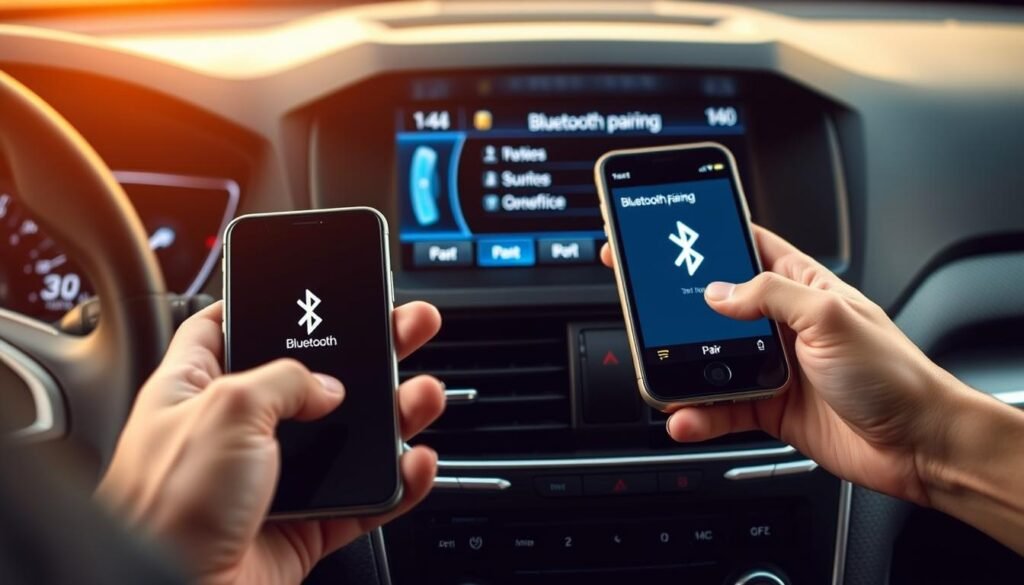
Steps To Ensure Successful Pairing
- Start your Ford Explorer and go to the Bluetooth settings on the Sync system.
- On your smartphone, navigate to the Bluetooth settings and ensure Bluetooth is enabled.
- Keep your smartphone close to the Sync system to minimize interference.
- Look for the Sync system on your mobile device; it should appear in the available device list.
- Tap on the Sync name to initiate pairing.
- Confirm any PIN codes that appear on both devices to finalize the connection.
Best Practices For Device Compatibility
- Always update your smartphone’s operating system and Ford Sync software to avoid compatibility issues.
- Disconnect Bluetooth on other devices that may cause interference during pairing.
- Ensure your smartphone is within a close range while completing successful pairing steps.
- Regularly clear any paired devices you no longer use in the Sync system settings.
- If issues persist, restart both your smartphone and the Ford Sync system before trying again.
Updating Your Ford Sync Software
It’s key to keep your Ford Sync software up-to-date for the best performance and connection.
Cars with Ford Sync need these updates for better function, especially for Bluetooth.
Updates are important not just for fixing bugs but also they make your drive better and more fun. They help avoid Bluetooth problems, so your connection stays smooth.
Why Software Updates are Important?
Updates bring lots of good stuff, like:
- Improved Bluetooth connectivity performance
- Enhanced compatibility with new devices
- Fixes for known bugs and issues
- Access to new features and functionalities
How To Check For Updates
Looking for Ford Sync updates is easy with a few steps. You can update it by:
- Through a Dealership: Go to your Ford dealership for help with the software update.
- Using USB Method: Download the update from Ford’s website, put it on a USB drive, then plug it into your car’s USB port and follow the instructions.
- Wi-Fi Connection: If your car is Wi-Fi ready, look for updates in the car’s settings.
Checking Compatibility with Smartphone Operating Systems
It’s key to understand how different smartphone operating systems work with the Ford Explorer’s Bluetooth.
iOS and Android interact in their own ways with Ford Sync. This might make it hard to connect sometimes.
Common Issues with iOS Devices
Recent iOS updates have caused some ios pairing issues. Users have faced problems like:
- Not finding the Ford Sync system in Bluetooth settings.
- Getting disconnected often.
- Music not playing correctly from the iOS device.
To fix these, update your iOS device and adjust settings that might block pairing.
How Android Users Can Troubleshoot
Android users need to follow specific steps to fix their Bluetooth connection. If you’re facing android troubleshooting ford explorer bluetooth issues, do this:
- Delete the Ford Sync connection from your Android’s Bluetooth settings.
- Restart both your phone and the Ford Explorer’s system.
- Try pairing them again, making sure Bluetooth is active on both.
Learning these challenges can help you solve them fast. Then, you’ll have no trouble using Bluetooth in your Ford Explorer.
Alternative Solutions For Persistent Bluetooth Problems
Sometimes, standard steps can’t fix Bluetooth issues in your Ford Explorer. You might need to seek alternative solutions.
These options vary from professional help to tech upgrades. They aim to boost your vehicle’s connectivity.
Seeking Professional Assistance From Ford Dealers
Facing ongoing Bluetooth problems? Getting help from a ford dealer could be smart. Their technicians use advanced tools for a detailed check-up.
They’re experts in your vehicle’s tech. Plus, they can handle complex issues with the right equipment or updates.
Third-party Apps For Bluetooth Management
Besides dealer support, consider Bluetooth management apps. You can download these apps. They aim to better your Bluetooth’s performance.
Using these tools might unlock new features. This can improve how you connect within your Ford Explorer.
| Solution Type | Description | Benefits |
|---|---|---|
| Ford Dealer Assistance | Professional diagnostics and repairs for Bluetooth issues. | Access to specialized tools and expertise. |
| Bluetooth Management Apps | Third-party applications to help manage connectivity. | Offers innovative features and can enhance performance. |
Conclusion
Knowing how your Ford Explorer’s Bluetooth works is vital for a good drive. If you run into issues, being able to figure them out is important.
This guide helps you fix any Bluetooth problems and make driving more enjoyable. Make sure your Ford Sync software is up to date.
Also, learn how to pair your devices properly. These steps can prevent many problems from starting. Keeping up with maintenance and checking device compatibility ensures a smooth ride.
Overall, dealing with Bluetooth issues the right way can make driving better. Stay ahead of problems, and you’ll enjoy your trips more.
FAQs
Q: What should I do if my Ford Explorer Bluetooth won’t connect?
A: Start by turning off and on your devices, keeping them close. Then, disconnect and reconnect Bluetooth on both. Also, check for updates on your phone and the Ford Sync system.
Q: How do I perform a soft reset on my Ford Sync system?
A: To do a soft reset, hold down the power button on the Ford Sync. Wait until the screen turns off and on again. This process won’t remove your settings.
Q: What common error messages indicate Bluetooth issues in my Ford Explorer?
A: Errors like “unable to connect” or “pairing failed” are common. They usually hint at compatibility problems or system glitches.
Q: How can I update my Ford Sync software?
A: Updates are available at the dealership, online via USB, or Wi-Fi for supported cars. Keeping up with updates ensures better performance.
Q: Are there specific compatibility challenges for iOS and Android users with Ford Sync?
A: iOS may have problems after updates, while Android might need setting tweaks for better connection. Check the manufacturer’s guidelines for help.
Q: What should I do if basic troubleshooting doesn’t resolve the Bluetooth issues?
A: If simple fixes don’t work, visit a Ford dealership for help. You can also find apps to better manage Bluetooth connections.
Q: How does firmware incompatibility contribute to Bluetooth connectivity problems?
A: Firmware issues can stop your phone and Ford Sync from connecting well. Update both to avoid these connection problems.