Troubleshooting Ford Sync Not Working Issues
Is your Ford Sync not working? You’re not alone. Many drivers encounter issues with their Ford Sync systems, disrupting the drive.
We’ll walk you through common problems, diagnostics, and troubleshooting steps. This will get your system back to working properly.
Learning why Ford Sync isn’t working helps to fix issues quickly. Let’s look at typical problems with Ford Sync, then start with some initial troubleshooting you can do.
You’ll then learn how to use the SYNC menu for checks. We’ll guide you through fixing common connection issues.
If slow response or glitches bother you, we have tips to solve them. This guide will help you keep your car’s multimedia system in top shape.
Knowing Ford Sync Technology
Ford Sync technology is a big step forward in car tech, offering drivers a new way to connect their vehicles and mobile devices.
Made with Microsoft, this system lets you control many car functions by voice or touch. This makes driving more enjoyable and safer.
What is Ford Sync?
Ford Sync is a smart system for your car that makes it easy to use music, navigation, and talking features. With Ford Sync, you can link your phone via Bluetooth.
This lets you make calls, send texts, and listen to music without using your hands. Your car becomes a smarter, more fun place to be.
Benefits of Ford Sync in Your Vehicle
Ford Sync in your car comes with many positives. You get:
- Enhanced Connectivity: Connect your mobile device fast, keeping you linked wherever you go.
- Voice-Activated Navigation: Use voice commands for directions, helping you stay focused on driving.
- Hands-Free Music Streaming: Play your top tunes while driving safely.
- Text Messaging: Read and reply to texts without removing your hands from the steering wheel.
Adding Ford Sync to your car gives you tons of useful features. These improve your travel, making sure you’re both safe and having fun.
Common Ford Sync Issues and Their Causes
It’s crucial to know about Ford sync issues to keep your driving smooth. Common problems can mess with your connectivity and how you use your vehicle.
Knowing the main causes lets you solve problems more clearly.
Overview of Frequent Problems
There are a few usual problems you might run into:
- Failure to connect Bluetooth devices
- Slow response times from the system
- The system not turning on at all
These troubles can come from software bugs or other electronic devices interfering.
Identifying Specific Issues
Spotting the exact signs of Ford sync problems helps you figure out why they happen. For example:
- If Bluetooth doesn’t connect, your firmware might be outdated or a setting needs a tweak.
- Slow responses often mean too many background processes.
- When the system won’t turn on, it might be electrical or hardware issues.

How to Diagnose Ford Sync Not Working
If your Ford Sync isn’t working right, there are steps you can take. You can start by trying simple things.
Like rebooting your car, which might fix small issues. After that, check the SYNC menu for more clues.
Initial Steps For Troubleshooting
Here are some key steps to start troubleshooting:
- Restart your vehicle and allow the system to reset.
- Ensure all devices are powered on and within Bluetooth range.
- Check for any visible error messages on the SYNC screen.
- Unpair and then re-pair any connected devices.
- Verify that your vehicle’s software is up to date.
Using The SYNC Menu for Diagnosis
Use the SYNC menu for a detailed check. Here’s how:
- Access the SYNC menu to view system settings and device connections.
- Look for any connectivity errors to see pairing issues.
- Follow prompts for troubleshooting as shown on the screen.
- Write down any specific error codes for future reference.

By following these steps, you can find and fix your Ford Sync issues. It takes some patience and attention to details, but you can get your connectivity back on track quickly.
| Step | Description | Outcome |
|---|---|---|
| 1 | Restart the vehicle | System refresh |
| 2 | Check device power | Ensure devices are ready |
| 3 | Review error messages | Identify specific issues |
| 4 | Unpair/re-pair devices | Resolve connection issues |
| 5 | Check software updates | System compatibility |
Solutions For Ford Sync Not Working
If your Ford Sync system is acting up, don’t worry. Fixing these issues usually involves simple steps. We’ll cover basic troubleshooting and resetting to help fix your Ford sync problems.
Basic Troubleshooting Steps
Begin with these steps to solve common Ford Sync problems:
- Turn off Bluetooth on your smartphone and the SYNC system, then turn it back on.
- Disconnect and reconnect your smartphone to the SYNC system.
- Ensure that your vehicle’s software is up to date, as outdated software can lead to connectivity problems.
- Check your smartphone for any updates that might impact the Bluetooth connection.
- Restart your smartphone to clear temporary glitches that could affect the connection.
Resetting Your Sync System
If issues keep coming up, resetting the Sync system might be needed. This step brings the system back to its original settings.
It can fix problems and remove corrupted data:
- Press and hold the power button on the SYNC system for about 10 seconds until the screen goes dark.
- Wait for a moment before pressing the power button again to turn it back on.
- Navigate to the SYNC settings menu and select the option for a factory reset.
- Confirm the reset when prompted. Keep in mind that this will erase user data and settings.
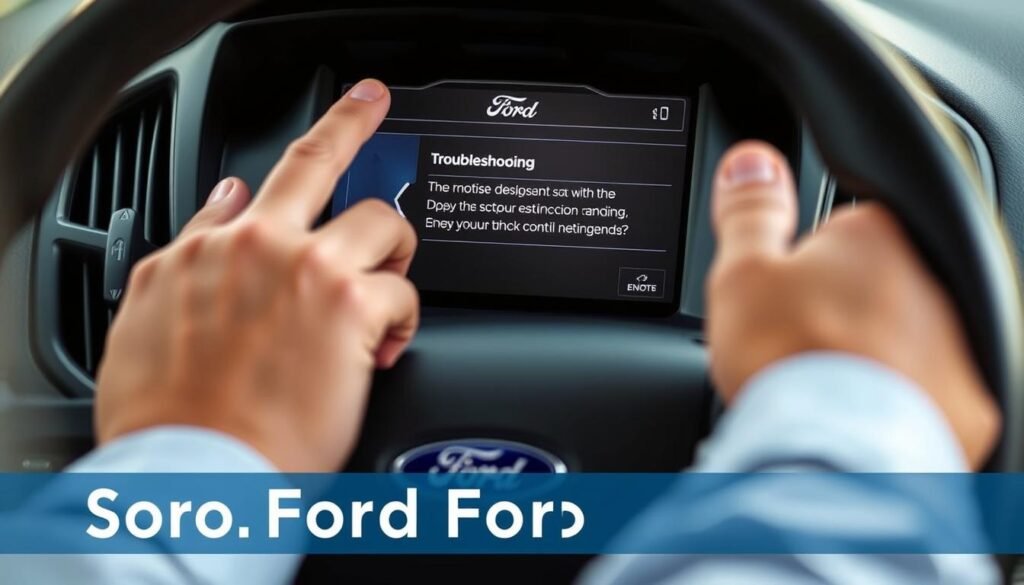
Use these troubleshooting steps for your Ford sync issues. By doing so, you can get your SYNC system working right and enjoy your drives more.
Ford Sync Not Connecting to Your Smartphone
Many users find Ford Sync doesn’t link up with their smartphones. This often comes from Bluetooth issues or out-of-date software. Tackling these problems quickly can make your drive better.
Common Connection Problems
Figuring out why your Bluetooth isn’t working can help solve it faster. Some common issues include:
- Bluetooth functionality disabled on the smartphone.
- Older software versions on either device.
- Incompatibility between the smartphone and Ford Sync.
- Previous connections causing interference.
How to Establish a Successful Connection
To link Ford Sync with your smartphone, do the following:
- Ensure Bluetooth is enabled on your smartphone.
- Confirm compatibility by checking the owner’s manual.
- Delete any previous pairings from both the phone and Ford Sync.
- Reboot both devices if issues persist.
- Follow the on-screen pairing instructions carefully.

Resolving System Performance Issues with Ford Sync
Fixing problems with your Ford Sync system can make driving more enjoyable. It’s annoying when Ford Sync doesn’t answer right when you need it.
Follow the steps below to fix slow responses and make sure your system works well.
Dealing with Slow Response Times
If Ford Sync feels slow or doesn’t answer, try these steps:
- Unpair and then re-pair your devices to fix temporary glitches.
- Restart your vehicle to refresh the system’s operation.
- Close apps you’re not using to speed up response times.
Checking Software Updates
It’s important to keep your Ford Sync updated for the best performance. Updates often have fixes and improvements. Here’s how to check for updates:
- Use your vehicle’s Wi-Fi to connect online if you can.
- Go to your Ford Sync’s settings menu and look for updates.
- If you can’t connect, use a USB stick for updates or get help at a dealership.
With these tips, you can fix Ford Sync problems, like not responding, and make your car’s tech better.
Ford Sync Troubleshooting Tips
Fixing Ford Sync system problems quickly is easy with the right tips. Understanding these tips is crucial, especially for resets and pairing issues.
Effective Reset Processes
To fix glitches in the Ford Sync, resetting is a great first step. Here are how to do it:
- Start your vehicle and turn on the SYNC system.
- Press and hold the power button until the screen goes black and then reboots.
- If problems continue, try a master reset in the settings menu:
- Access the SYNC menu.
- Go to Settings > General > Master Reset.
- Confirm the reset, which will delete all stored data.
Successful Pairing Techniques
To connect your phone smoothly, use these tips:
- Make your smartphone discoverable in the Bluetooth settings.
- On the SYNC screen, select Phone > Add Device.
- Pick your smartphone from the list on the SYNC interface.
- Follow the on-screen instructions to finish pairing.
Following these steps will help solve common Ford Sync problems. This makes driving more fun and hassle-free.
Expert Ford Sync Support and Resources
When you face ongoing problems with your Ford Sync system, it’s wise to seek expert help.
There are many reliable resources available. They give you the necessary support to efficiently fix your issues.
Where to Find Help
Ford offers several support options for Sync users. You can check out their online tutorials, manuals, and troubleshooting guides.
These are made to help you understand the system better and fix common problems.
Utilizing Ford’s Customer Support
To get more specific help, contact Ford’s customer support. They provide phone and live chat support.
Talking to Ford’s experts can give you personalized assistance for your Sync issues.
Preventing Future Ford Sync Problems
To keep your Ford Sync system running smoothly, it’s important to take certain steps.
Adding these methods to your daily routine can greatly decrease future problems. Not only does this prevent issues, but it also makes your system last longer.
Regular Maintenance Tips
Keeping your system in top shape requires regular maintenance. Here are some important tips:
- Check for software updates frequently to keep your system current.
- Clear out old Bluetooth connections to streamline the pairing process.
- Maintain a clutter-free SYNC memory to enhance responsiveness.
- Perform routine checks of audio settings to ensure everything works correctly.
Best Practices For Using Ford Sync
Using Ford Sync the right way can better your experience. Keep these points in mind:
- Ensure devices are charged and updated before connecting.
- Avoid multitasking with multiple Bluetooth devices to prevent connection issues.
- Restart your SYNC system occasionally to clear temporary glitches.
- Utilize voice commands when available to minimize distractions.
Conclusion
Troubleshooting Ford Sync issues is key to a good driving experience. Knowing how the Ford Sync system works helps you spot problems.
You can then fix these problems with the steps we’ve talked about. Keep an eye on how the system is doing and always use the latest software.
This reduces the risks of problems. And, by following our advice, you can keep your system running smoothly.
Deal with sync problems early to get the most out of your car’s tech. This will keep you connected and make drives better.
FAQs
Q: What should I do if my Ford Sync is not working at all?
A: Start by restarting your car to refresh the system. Look for any error messages in the SYNC menu. Make sure your devices are on and close by. If problems continue, reset your Sync system back to factory settings.
Q: Why won’t my Ford Sync connect to my smartphone?
A: Reasons could be Bluetooth is off on your phone or the software is old. Check if your smartphone works with Sync, and follow pairing steps carefully. Try deleting old Bluetooth connections too.
Q: How can I fix slow response times in Ford Sync?
A: For better performance, unpair and pair again your devices. This action fixes temporary cache problems. Also, update the software to boost system performance.
Q: What do I do if Ford Sync is not responding to voice commands?
A: Check if your microphone works well and nothing’s blocking it. You might need to change voice settings or reset the system if troubles last.
Q: How do I perform a master reset on the Ford Sync system?
A: Go into SYNC settings, choose ‘Factory Reset’ or ‘Master Reset,’ and confirm. This erases all personal settings and data.
Q: Where can I find additional support for Ford Sync issues?
A: Visit Ford’s official website for guides and manuals. For more help, contact Ford’s customer support over the phone.
Q: How can I prevent future Ford Sync problems?
A: Always check for new software updates, remove old Bluetooth connections, and keep SYNC memory clean. These steps enhance performance and lower problems.